
Add an expense transaction
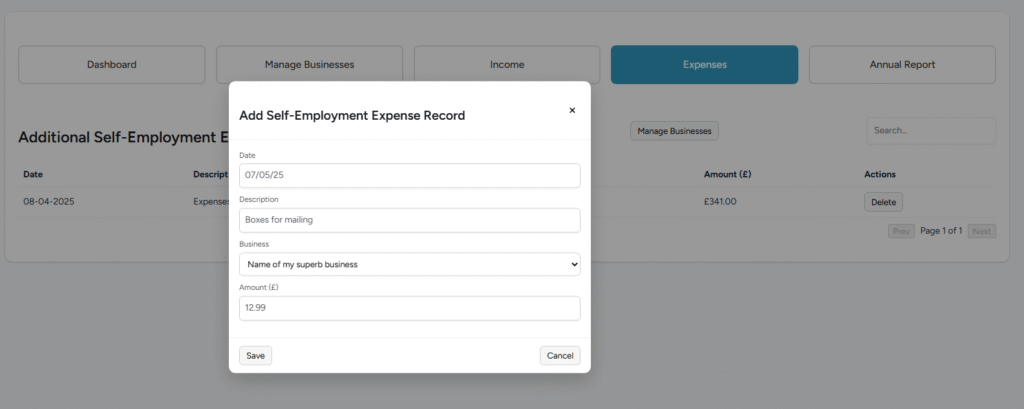
- Click “Add new” button in the top right
- Complete the required fields:
- Date: Enter as DD-MM-YYYY (e.g., 15-06-2025) or DD/MM/YY (e.g., 15/06/25)
- Description: What the expense was for
- Business: Select from dropdown (only active businesses shown)
- Amount (£): Enter in pounds and pence (e.g., 45.50)
- Click “Save”
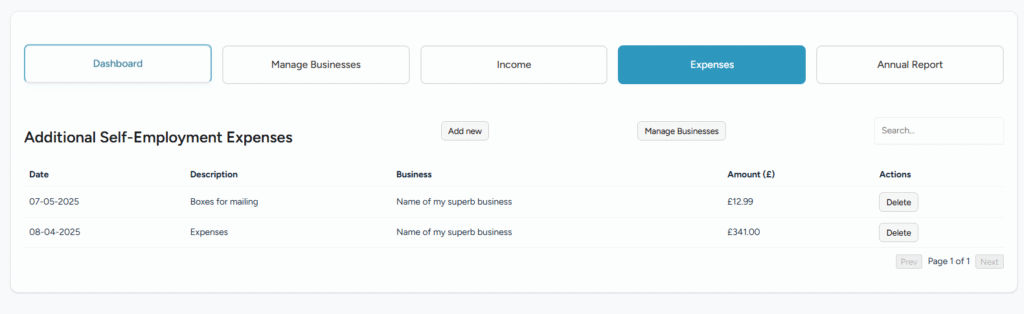
Expenses Table Overview
- Date in DD-MM-YYYY format
- Description of the expense
- Which business it relates to
- Amount in £ with 2 decimal places
- Actions column with “Delete” button
Managing expense records
- Search: Type in the search box to filter by description
- Pagination: Use “Prev” and “Next” buttons to navigate through records
- Delete: Archives the record (can be restored by administrators if needed)
- Sorting: Most recent expenses appear first